iOS and macOS apps: Upload AppConfig.xml to enable managed configuration
Managed configuration allows you to configure settings before iOS and macOS apps (PKG files only) are deployed to devices.
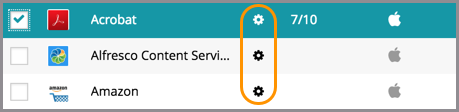
When adding an iOS or macOS PKG app to the library, KACE Cloud identifies any AppConfig.xml files and enable configuration of designated key values. You can then access the Edit Settings function for that specific app. All apps with managed configuration capabilities are represented with a gear icon in the library.

Apps that do not provide a discoverable AppConfig.xml file during upload to KACE Cloud may still offer the file, but it will need to be retrieved by an admin and uploaded manually. An admin can also create an AppConfig.xml file and upload it manually for a specific app.
| Supported variables for configuration: |
| %device_uuid% |
| %generated_email% |
| %user.emailaddress% |
| %user.firstnamelastinitial% |
| %user.firstnamelastinitial.short% |
| %user.firstnamelastname% |
| %user.firstnamelastname.short% |
| %user.fullname% |
| %user.username% |
To upload an AppConfig.xml file:
- Select the Libraries tab in top navigation.
- Click the Appsicon.
- Select an existing app where you’d like to add the file.
- Click the Upload AppConfig.xml button.
- Locate the xml file on your machine, then click Open.
When the upload process completes, the gear icon will show up next to the app in the library list, indicating that managed configuration is enabled.